Skyships PC Controls and Hull Stress Warnings
Find Skyships PC controls for flight, landing gear, mining, targeting and the map, and learn how to respond to hull stress warnings.
Last updated:
Use the Tactical Map to find ports, landmarks and ore deposits, then navigate to a landing platform and enter port.
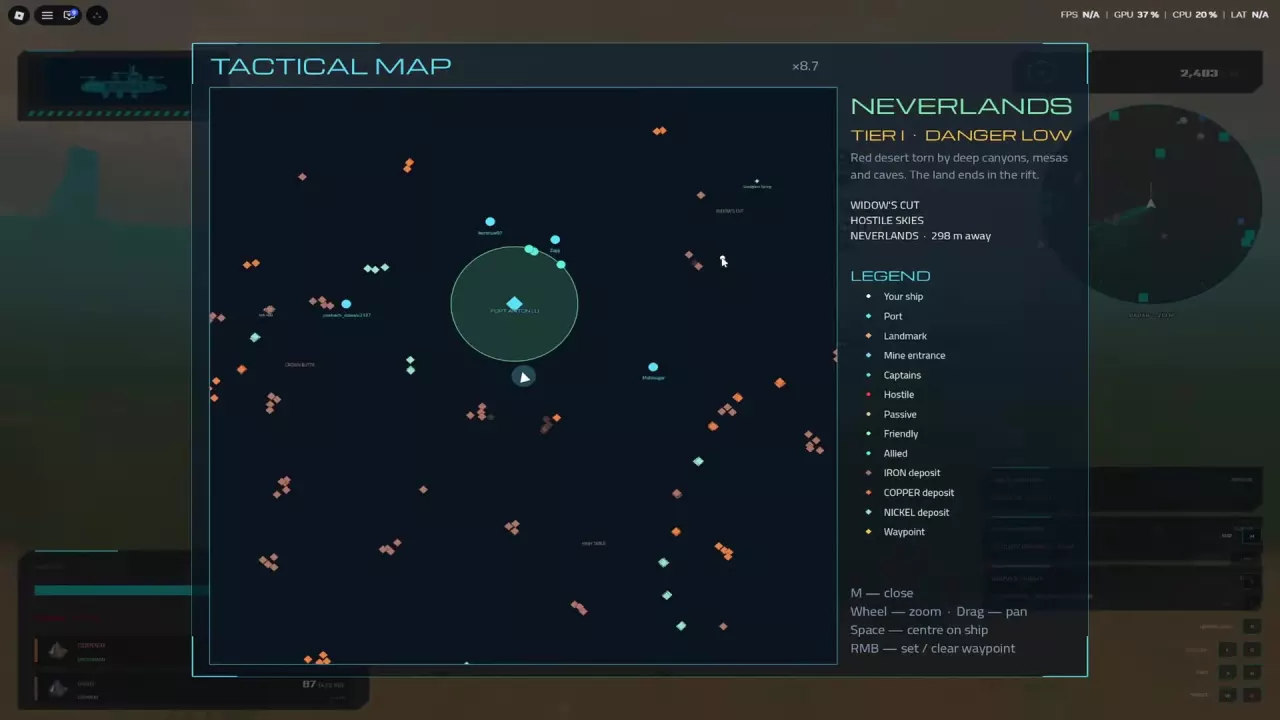
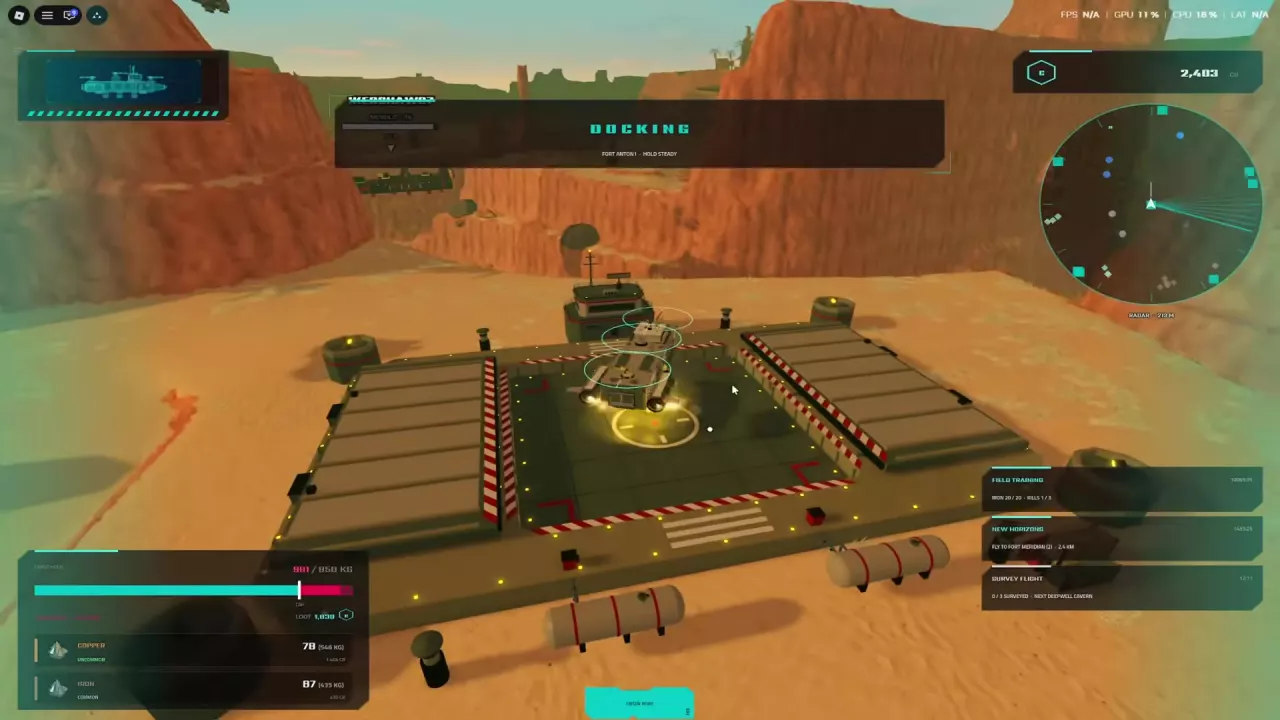
Press M to open the Tactical Map and right-click a destination to set a waypoint. Close the map and follow its direction and distance marker. At a port, approach the platform, use the entry prompt and hold your ship steady while docking.
Fort Anton is a training destination, Fort Meridian is a Tier 2 port and the destination for New Horizons, and Fort Cedars is useful for returning from resource trips. Port approaches can show Shipyard, Market and Quests labels; the service menu opens after docking.
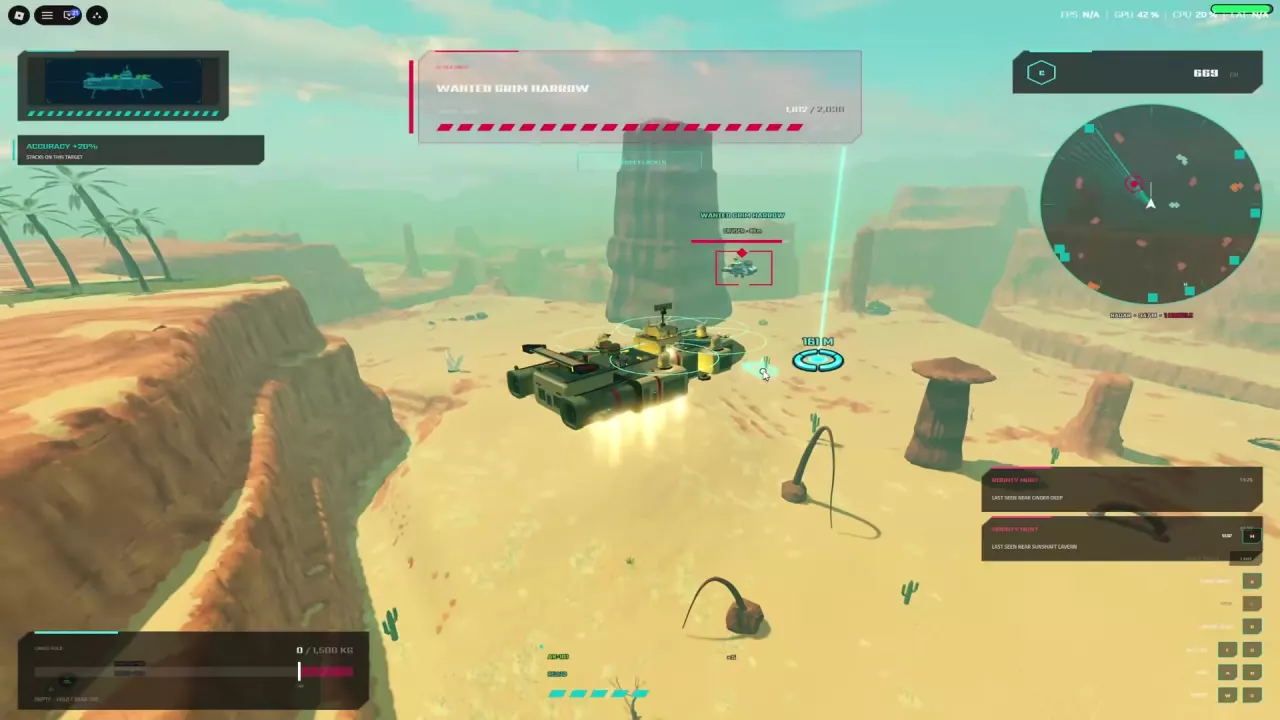
Neverlands is labeled Tier I and Danger Low on the Tactical Map. Its red desert terrain includes deep canyons, mesas and caves. Red Desert is also labeled Danger Low: its entry label reads Tier I after early mining trips from Fort Anton and Tier II while flying Strizh. Keep clear of terrain, and slow down if a Hull Stress warning tells you to do so. See the PC controls and Hull Stress guide for flight controls and warnings.
The legend identifies your ship, ports, landmarks and mine entrances. It also distinguishes captains and unit relationships, including hostile, passive, friendly and allied units.
Separate deposit markers identify Iron, Copper and Nickel. Use the port marker to choose a destination, or look for an ore marker when planning a mining trip.
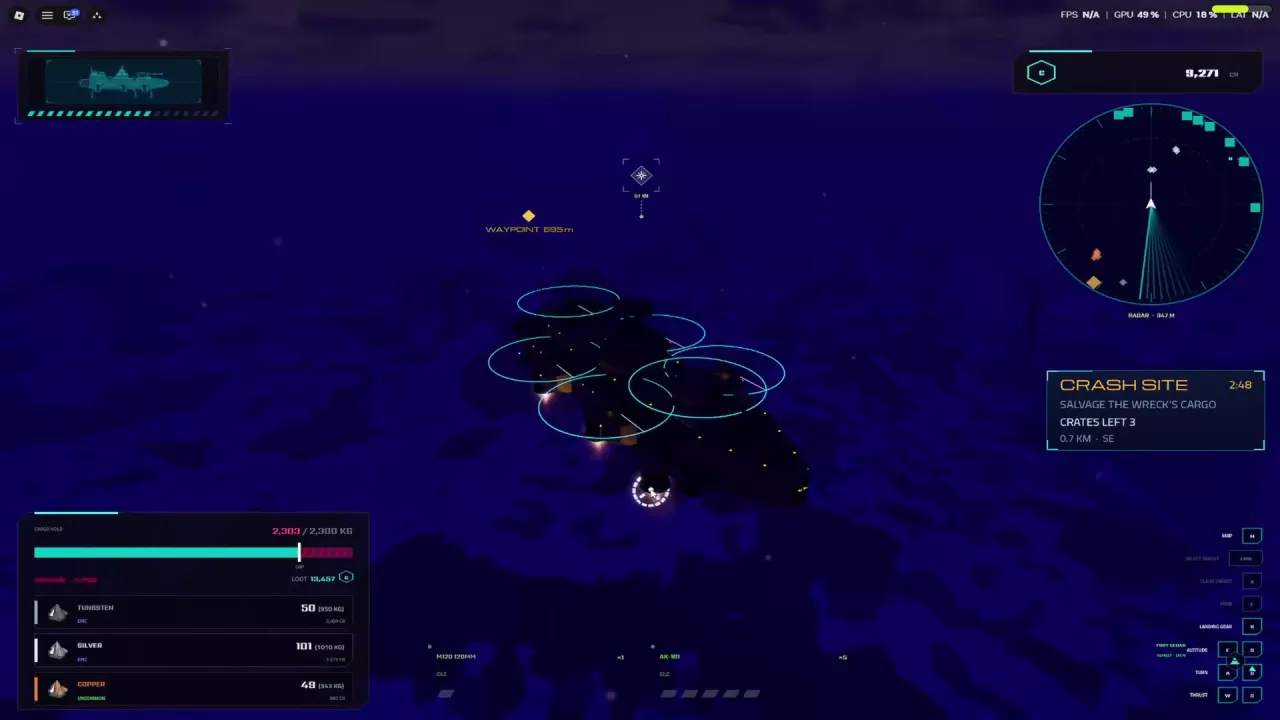
The approach to Fort Anton is a Safe Zone. At Fort Meridian, a Safe Zone notification says hostile targets will stop pursuing; the landing area labeled Fort Cedar has a similar notification. Keep clear of the surrounding terrain as you approach.
Docking also lets you secure resources from a trip. See cargo and storage for the distinction between storing cargo and selling it.
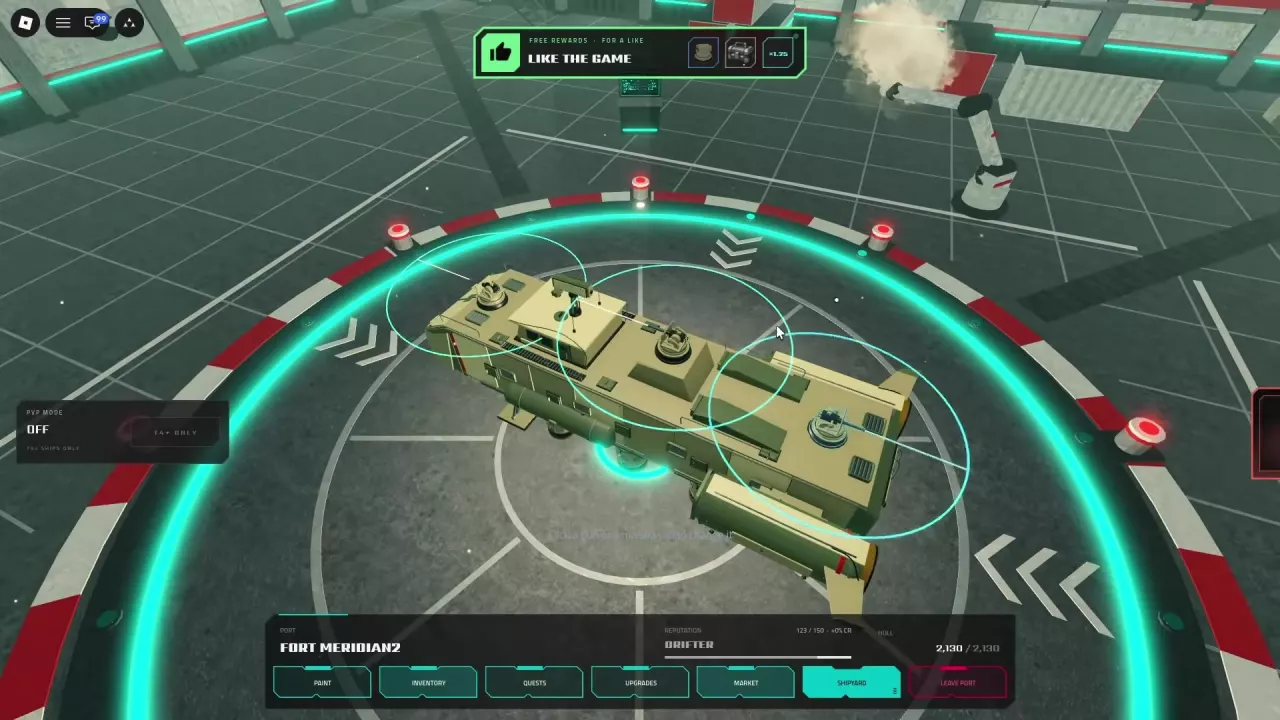
Once docked, use the port menu or click a mount on the ship:
| Goal | Port entry |
|---|---|
| Change paint or open your inventory | Paint or Inventory |
| Find contracts | Quests — see contracts and rewards |
| Open the upgrade menu | Upgrades |
| Buy or sell resources | Market → Resources — see the resource market guide |
| Build from an owned blueprint | Market → Blueprints → My Blueprints — see building and equipping weapons |
| Inspect ship branches, upgrade effects, prerequisites and costs | Shipyard → Tech Tree — see ship upgrades |
| Replace a weapon | Click a gun or missile mount on the ship in the port view |
| Find the PvP control | PvP Mode → Enable; the interface labels it for T4+ ships. See the combat guide for the entry conditions. |
| Return to flight | Leave Port |
Find Skyships PC controls for flight, landing gear, mining, targeting and the map, and learn how to respond to hull stress warnings.
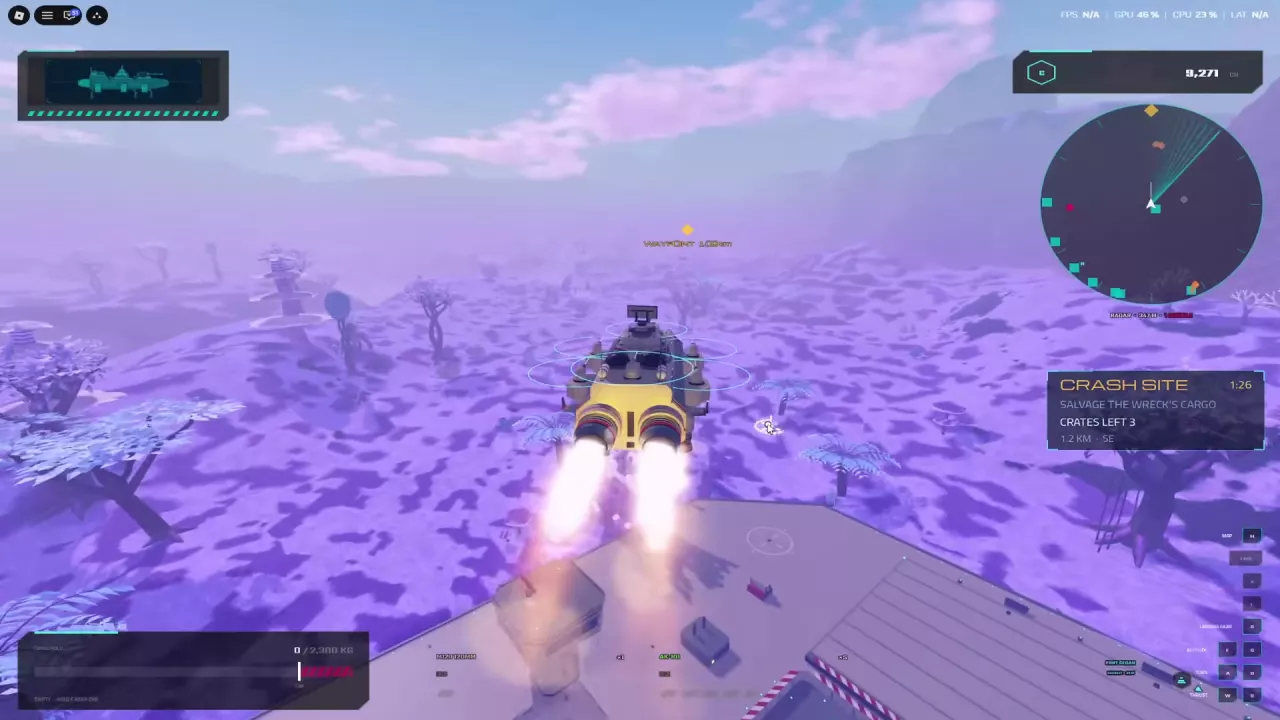
Learn what Crash Site and Meteor Strike signals mean in Skyships, how to follow their markers, and what hazards to expect.
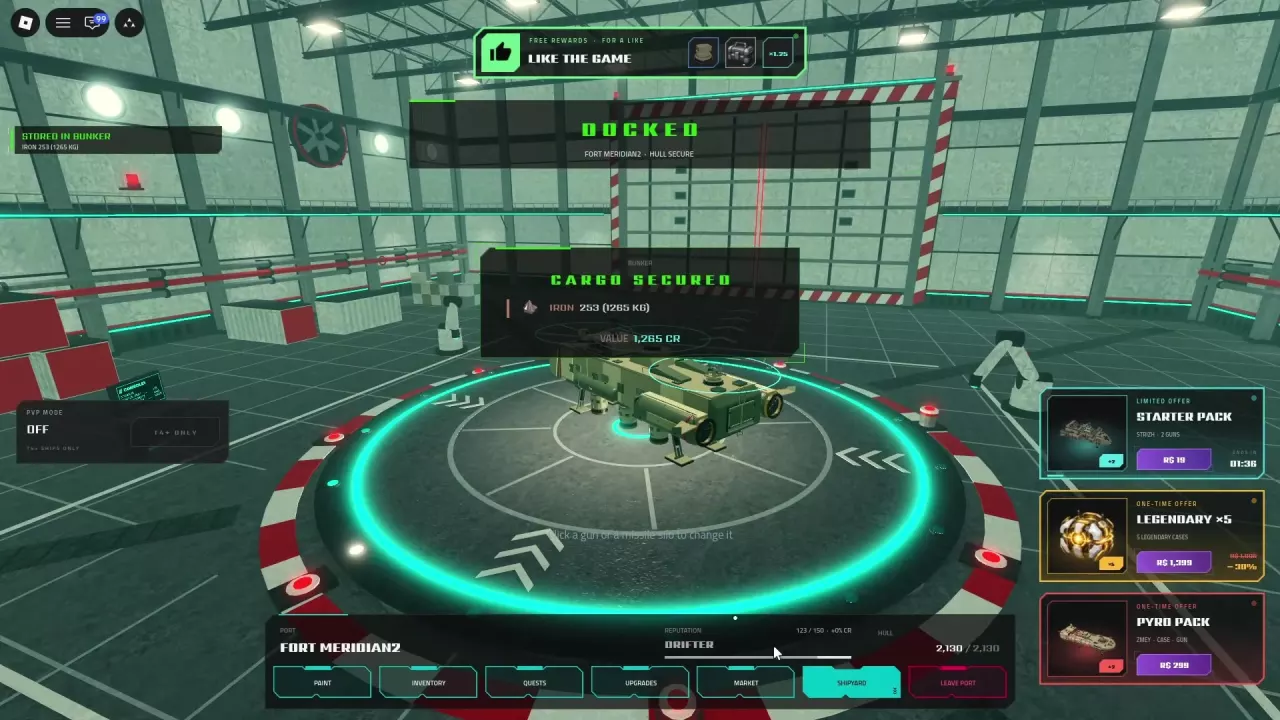
Learn how Skyships cargo weight and overload work, how to store resources in the Bunker, and which upgrades improve cargo retention.
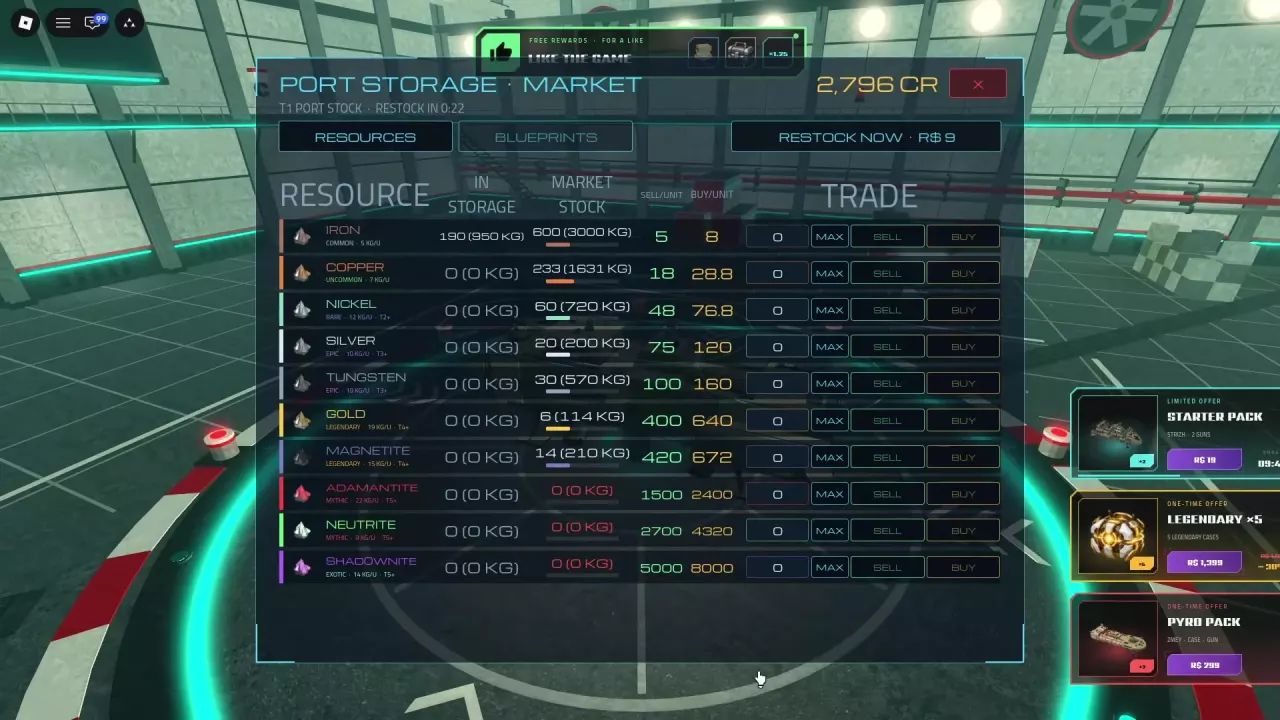
Learn how to buy and sell resources in the Skyships resource market, read storage and stock, calculate prices, and find restock options.
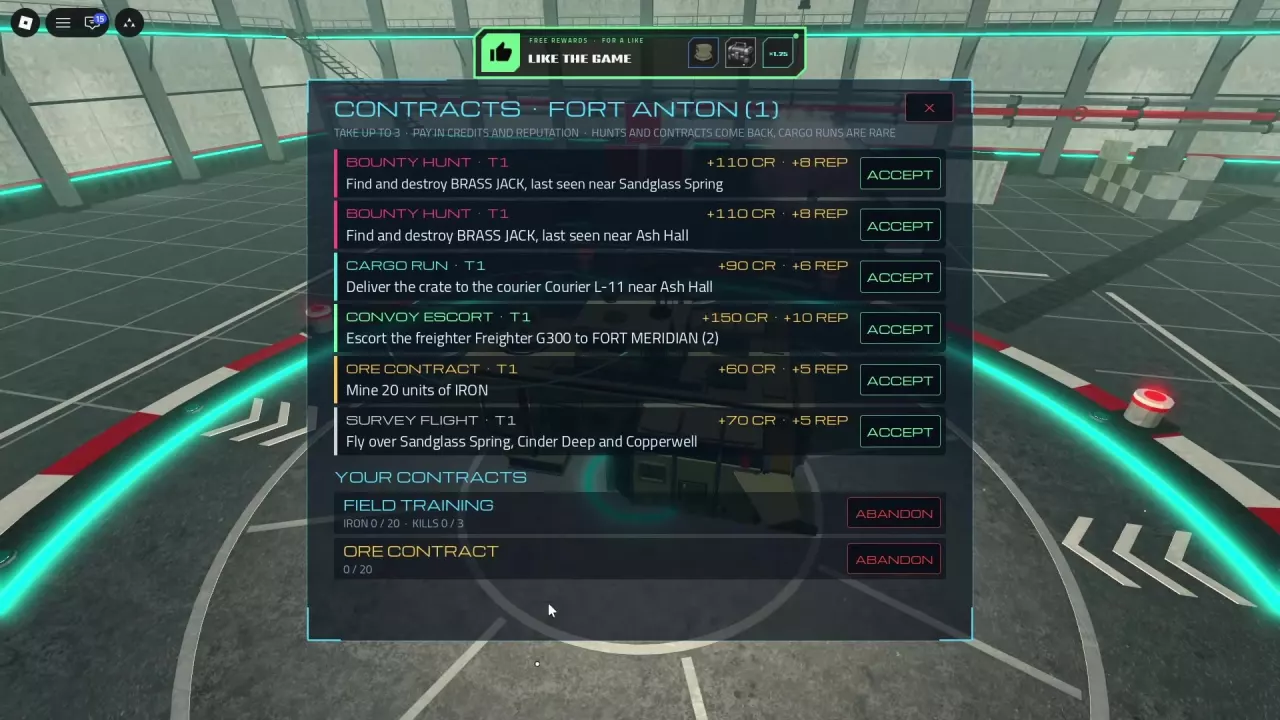
Compare Skyships contract objectives and rewards, manage up to three active contracts, and choose mining, bounty, delivery or survey tasks for your next trip.
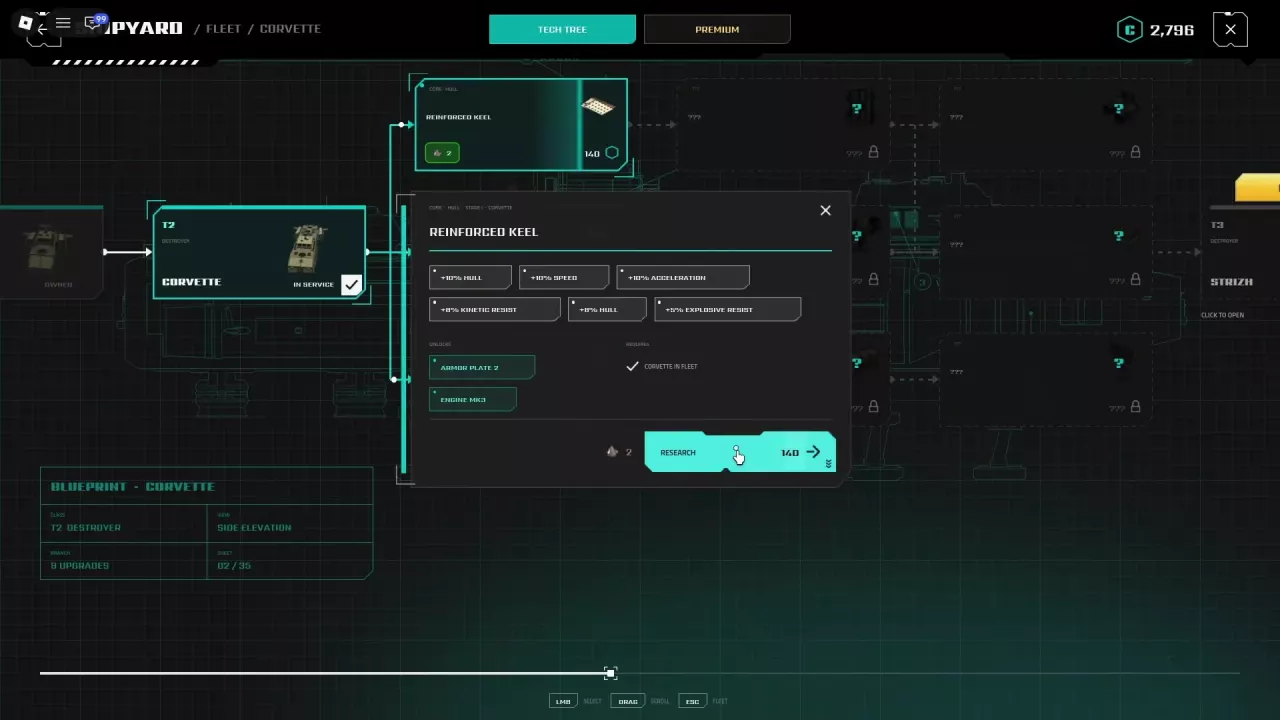
Find Skyships ship upgrades for Wasp, Corvette, Strizh and Berkut, including research costs, prerequisites, cargo bonuses, weapon unlocks and installation steps.
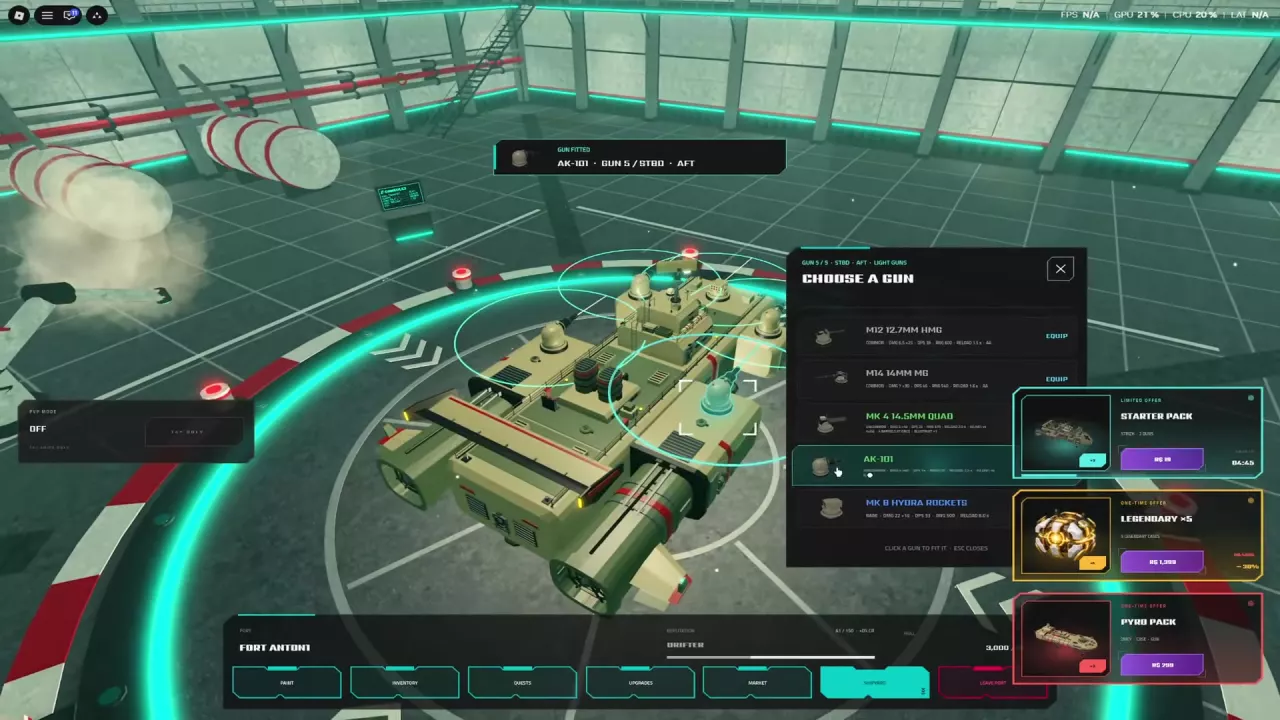
Get weapon blueprints, build the M14 with 12 Iron, and equip or change guns on your Skyships mounts.
Learn Skyships targeting, fix range and view warnings, read combat bonuses, retreat from missiles, get free repairs, and find the T4+ PvP requirement.